A client portal that keeps wedding bookings organised
Choose and set up a wedding client portal with clear approvals, mobile access and sensible privacy practices, then test it against a real booking.
Business guides · 6 min read
In brief
- Keep the current scope, contract and payment information easy to find.
- Treat viewing, quote acceptance and contract signing as different actions.
- Test the client view and share supplier information separately.
A client portal earns its place when someone can find the current quote, check their next payment and answer your questionnaire without asking which email to open. Giving them another place to look is easy. Keeping that place accurate takes a working process behind it.
For a wedding vendor, the useful question is what the client needs to do next. Choose a portal around those actions, then decide who updates it and what an approval means. The same approach works for a corporate function or a commercial shoot.
Put current booking information together
Start with the documents clients ask for repeatedly. Keep the accepted scope, contract, invoices and payment dates easy to find. Add the questionnaire or run sheet when it is useful, rather than presenting every unfinished planning document on day one.
Decide which record you update first when a booking changes. If the portal says 80 guests and your working notes say 96, you still have two versions to reconcile. Nominate one person to publish agreed changes and check any affected quote, timings or questionnaire answers.
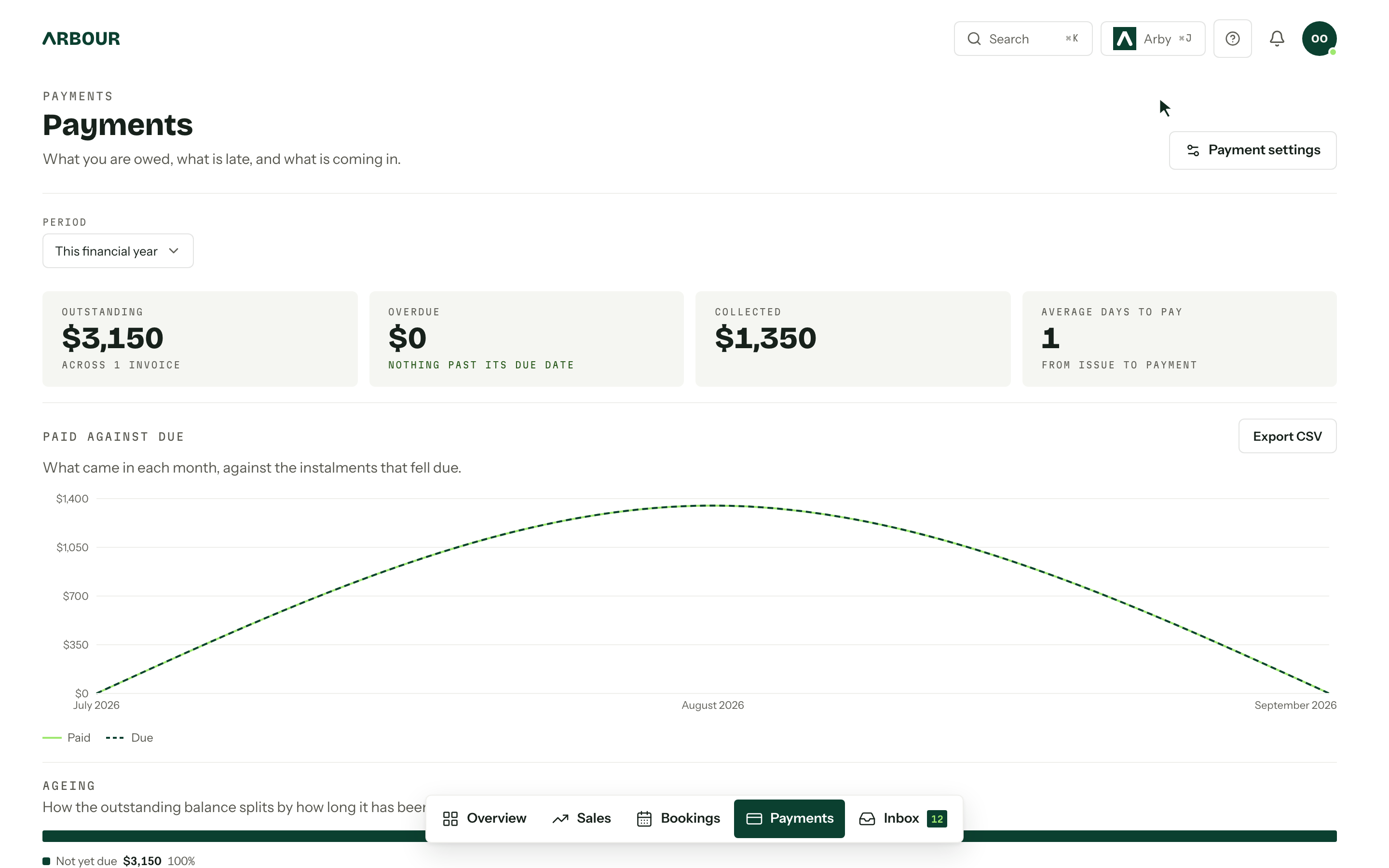
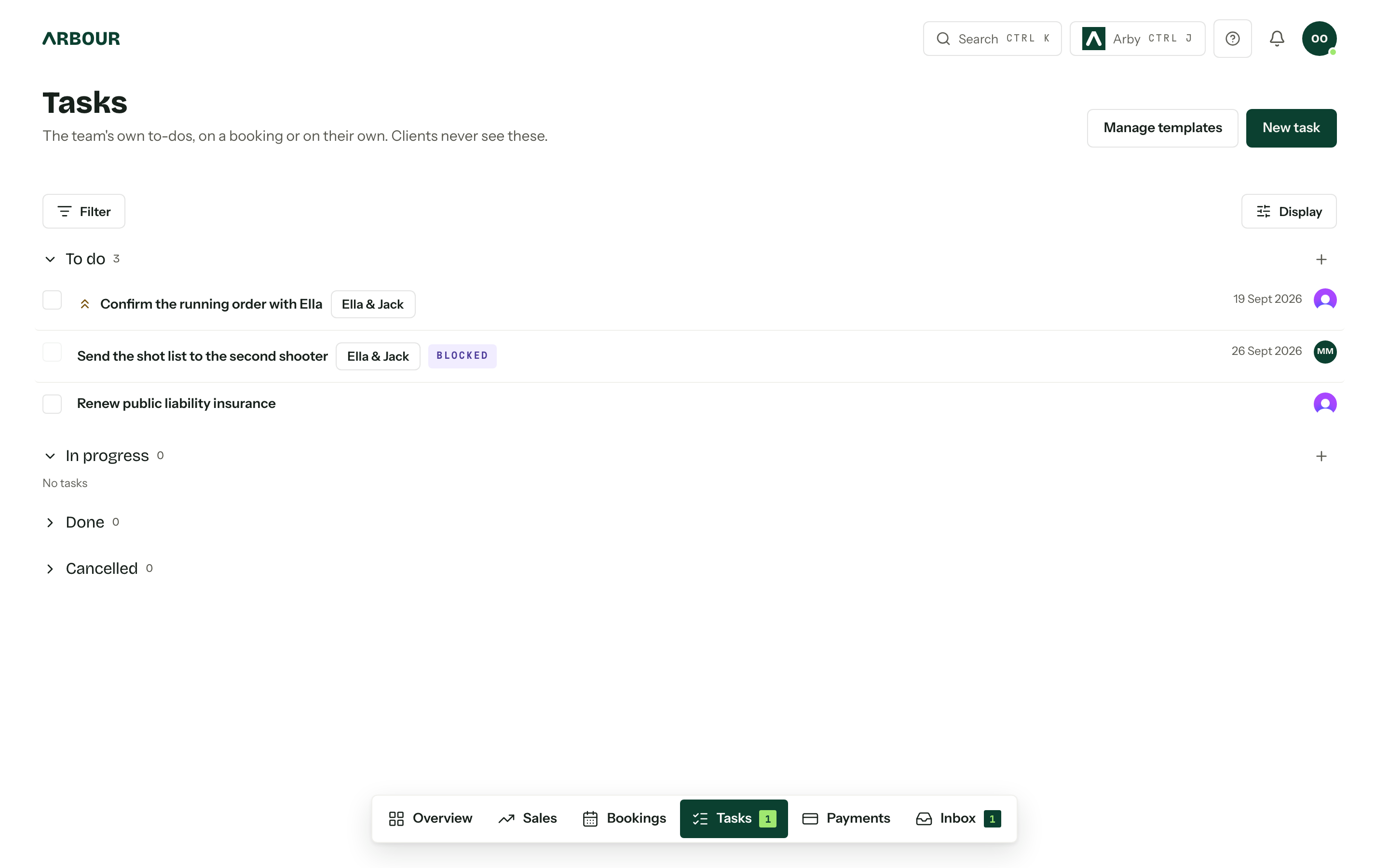
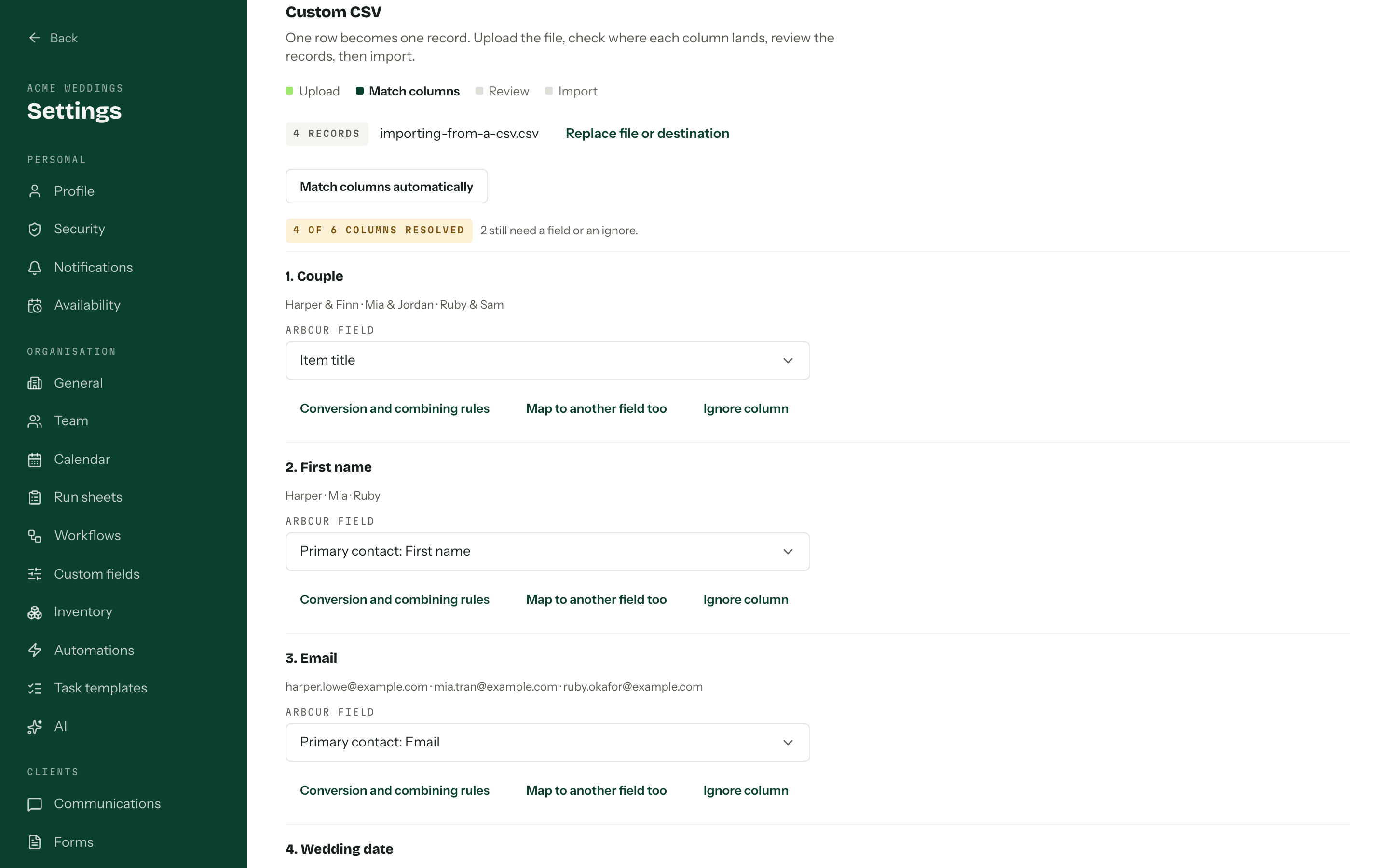
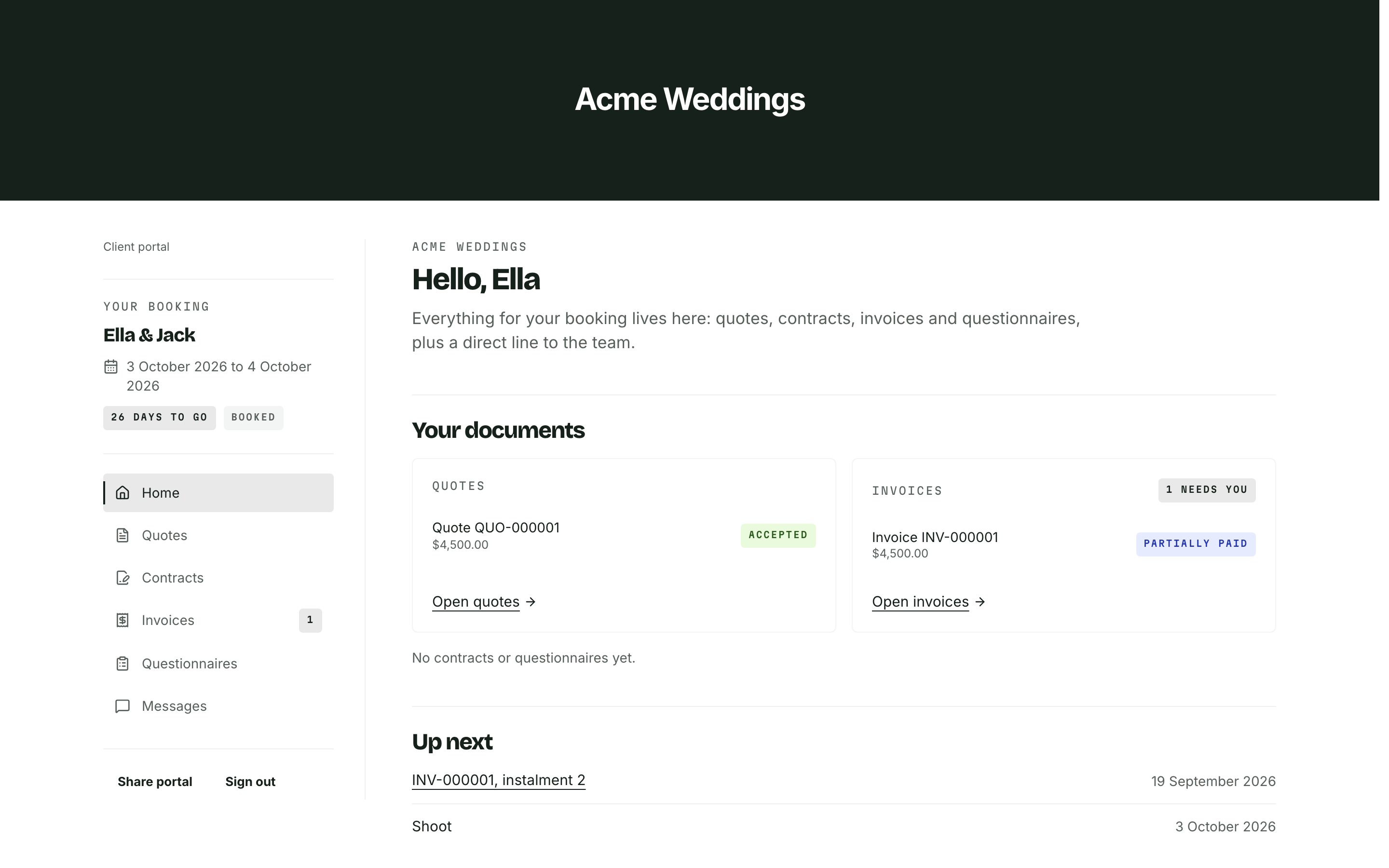
Arbour keeps quotes, contracts, invoices, questionnaires, the run sheet and one conversation with the job. Clients open a private link under your logo and colours, without creating an account. Its booking workflow shows how those pieces stay with the same record.
Show clients the current booking
Show full screenShow close-up: Show clients the current booking
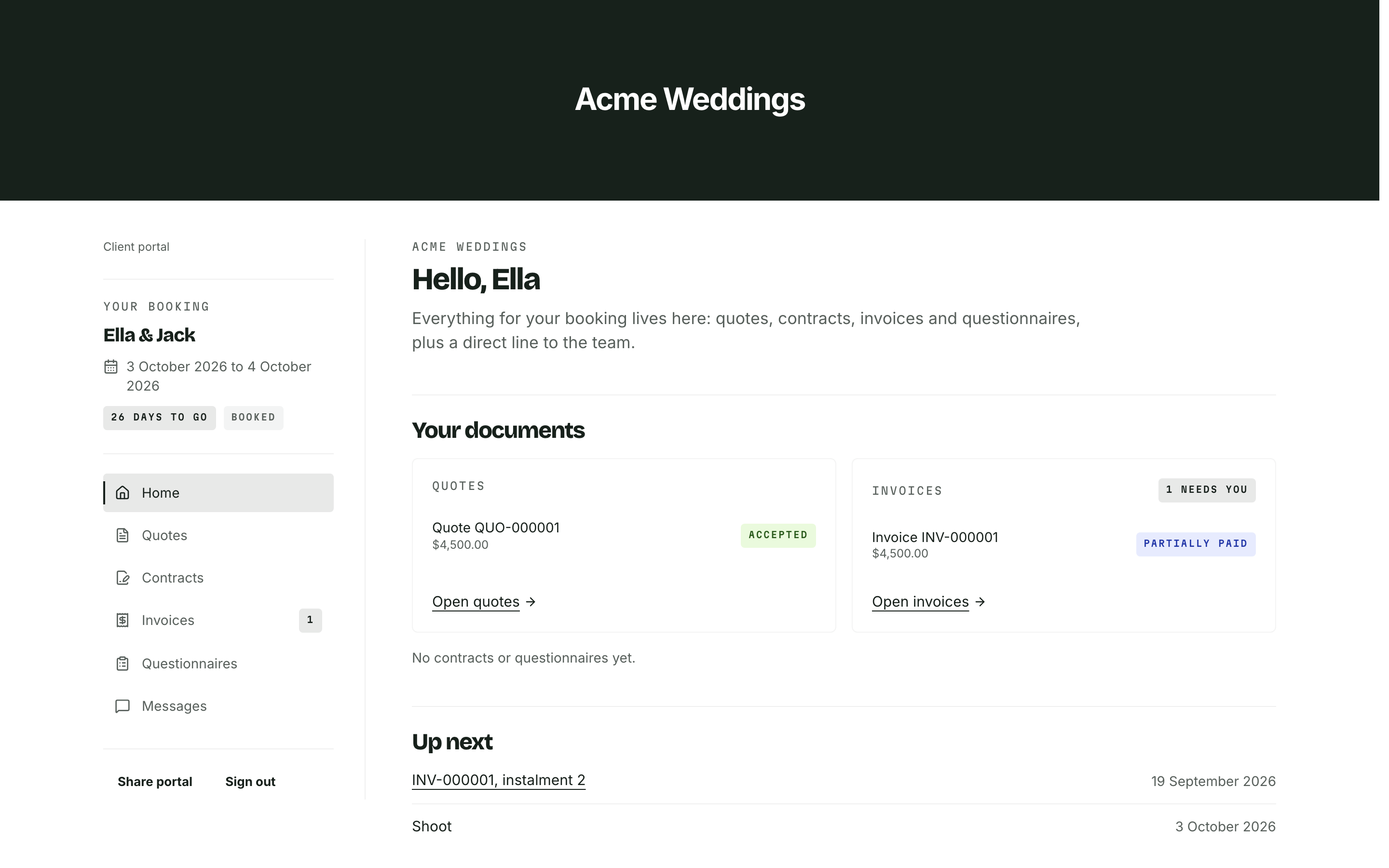
Quote status
Invoice status
Upcoming dates
Define what each approval records
Viewing a document, accepting a quote and signing a contract are different actions. Your process should tell the client which action you need and what happens afterwards. A message saying the flowers look lovely does not tell you whether the client approves a revised quantity or price.
For a change request, record the affected document and version, the decision you need, who can give it and the reply date. Agree which client contact can approve extra spending when several people are involved. Keep the old scope until the replacement is agreed. Confirm the result in writing before ordering extra stock or assigning more crew.
When testing software, send yourself a quote, accept it and follow the contract through signing. Check what the client sees at each step. In Arbour, accepting freezes the quote wording and sends the attached contract for signature in the portal. Review your actual contract terms separately when setting the business's booking rules.
Ask for the decision you need
| Action | What it records |
|---|---|
| View a document | The client opens the information |
| Accept a quote | The client accepts the quoted scope |
| Sign a contract | The requested signature step is completed |
| Approve a change | The agreed contact approves the specific version and cost |
Scroll across to compare.
Treat the private link as access to the booking
A password-free link removes a login step. It still needs careful handling. Send it to the agreed contacts and explain that it should stay private. Keep it out of public run sheets, social posts and supplier group chats. Ask your provider what happens if a link reaches the wrong person and how access can be changed.
Before choosing a system, inspect exactly what a link holder can see and edit. Do not assume that a client portal is also a suitable place for identity documents, staff records or every guest's personal details.
The OAIC's APP 11 guidance says organisations covered by the Australian Privacy Principles must take reasonable technical and organisational steps to protect personal information. It also addresses destroying or de-identifying information no longer needed, subject to exceptions. Check which obligations apply to your business, then put a retention and access process in place. [1]
Test on a phone and with a keyboard
Open the invitation on your phone, using the email app you normally use. Read the quote, find the total and complete a questionnaire. Check that an error tells you what to fix without deleting the answers you already entered. Repeat the important tasks with a keyboard on a computer.
W3C's forms guidance explains that controls need descriptive labels associated with their fields. Visible labels help people understand what to enter, and suitable field types can bring up a useful mobile keyboard. A placeholder that disappears while someone types is a poor substitute for a label. [2]
Increase the text size too. W3C's reflow guidance expects most content to remain usable at a width equivalent to 320 CSS pixels without scrolling in two directions. Some content, such as a detailed floor plan, has exceptions. Use that as a test of the portal's ordinary text and controls, rather than assuming a mobile screenshot proves accessibility. [3]
Choose what suppliers actually need
A caterer may need final numbers and service times. A driver may need the load-in address and a contact number. Neither necessarily needs the client's contract, invoices or full conversation with you.
Prepare a supplier handover around the work they must do. Give it a version date and name the person who will communicate later changes. Avoid forwarding the client's portal link just because it is quicker than assembling the right information.
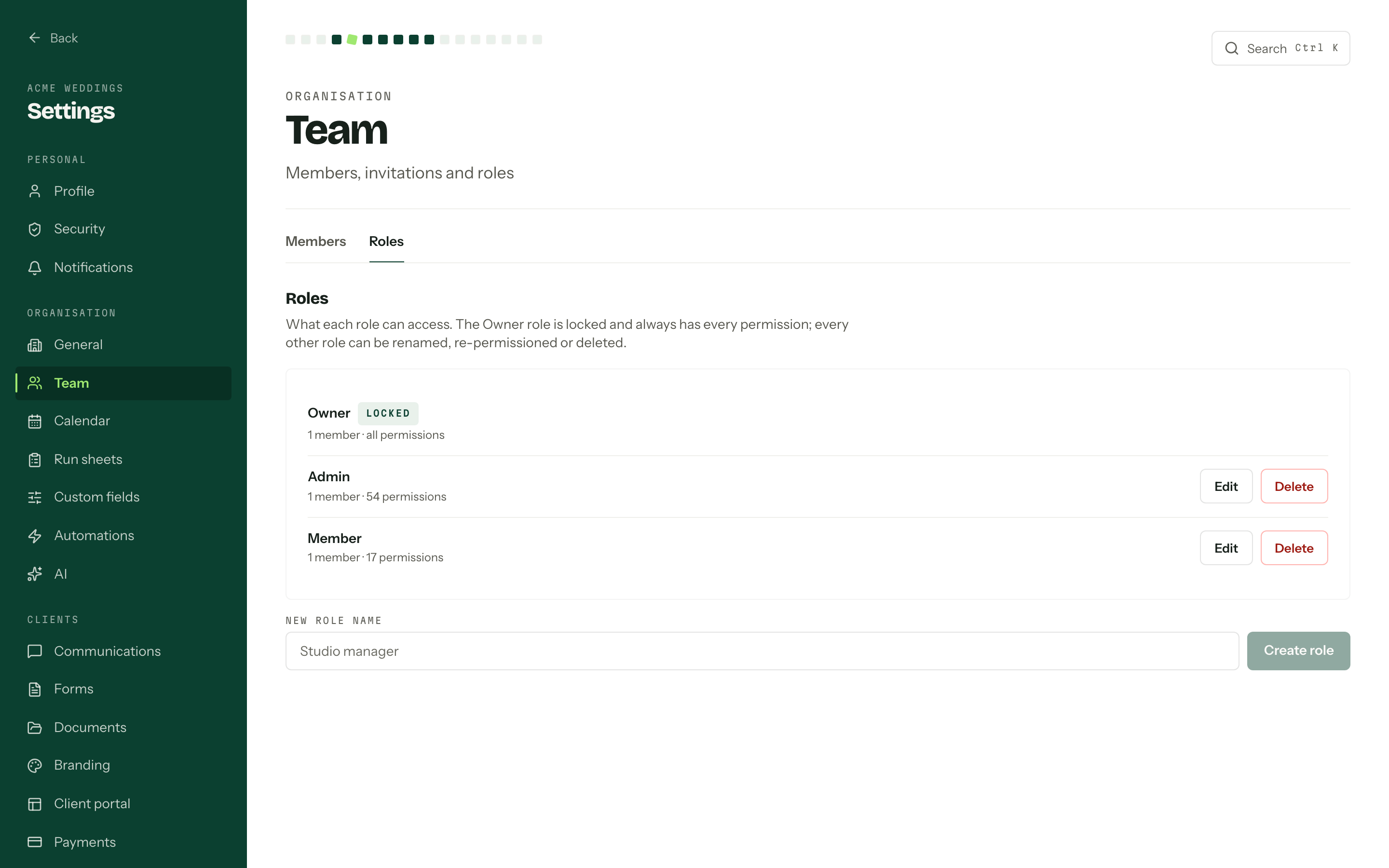
Inside the business, decide who answers portal messages and who can approve scope changes. If the owner handles money while a coordinator handles timings, write down that division. Check the software's permissions in your trial rather than assuming every user sees the same information.
Keep the team's access deliberate
Show full screenShow close-up: Keep the team's access deliberate
Run one booking through the trial
Use a fictional booking with realistic documents and contact details. Test an amended quote, a missed questionnaire answer and a revised arrival time. Ask a colleague to find the latest document without instructions. If they have to ask you which attachment counts, adjust the process before moving clients across.
Arbour's Studio and House plans support a portal on your own domain. Compare that alongside the roles and people you need in the current plan catalogue. Branding helps clients recognise where they are. The practical test is whether they can finish the task and whether your team can trace what happened afterwards.
Sources
Sources checked on 28 October 2026. Product details and guidance can change.
- 1Chapter 11: APP 11 Security of personal information
Office of the Australian Information Commissioner
- 2Labeling Controls
W3C Web Accessibility Initiative
- 3Understanding Success Criterion 1.4.10: Reflow
W3C Web Accessibility Initiative
Published by Arbour, which makes wedding business software. Read our editorial approach.