How to move your wedding business from spreadsheets to a CRM
Move your wedding bookings from spreadsheets to a CRM with a practical plan for backups, field mapping, test imports and a clean switch for your team.
Business guides · 6 min read
In brief
- Keep an untouched copy before cleaning or exporting the workbook.
- Map contacts, jobs and payment records separately.
- Reconcile the result before switching live work to the new system.
The awkward part of leaving a spreadsheet is rarely the upload. It is deciding whether the orange row means a paid deposit, a tentative hold or something your assistant changed last Thursday. A CRM cannot resolve that for you.
Move the book in stages. Preserve the originals, define what each field means, test a small batch and agree when the team will stop editing the old file. Start with active enquiries and booked work. You can decide what to do with the archive once the next season is running properly.
Preserve the originals before cleaning anything
Save a dated copy of every workbook, including hidden tabs and supporting files. Keep the original file format as well as any CSV export. Microsoft warns that CSV exports save only the active worksheet and remove formatting. If your booking status exists only as a cell colour, translate it into a named status column before exporting. [1]
For Google Sheets, download a separate copy through File, then Download. Google's automatic saving preserves edits in the working document; it does not give you an untouched migration copy by itself. Record which file and date produced each export. [2]
Store the backup somewhere access-controlled, separate from the folder you are cleaning. Check that you can open it. The Australian Signals Directorate recommends regular backups as a basic protection for small businesses. A migration is a sensible moment to check that your recovery copy contains the files you would need. [3]
Separate people from the work they booked
A contact and a job are different records. The same person might enquire about a wedding, book a commercial shoot later and introduce you to a venue manager. Putting all of that into one row makes the next import harder.
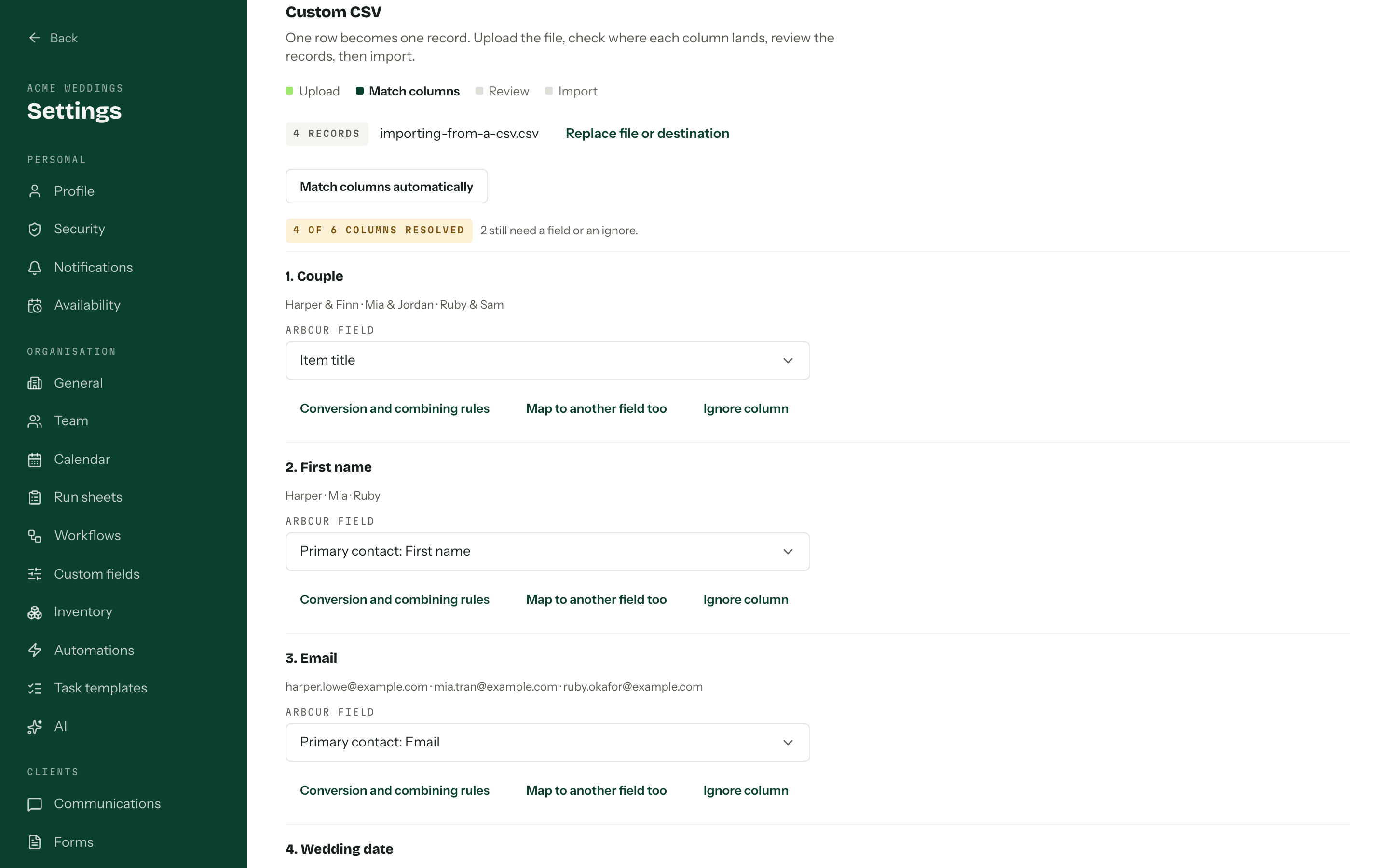
Create a mapping sheet with the old column name, destination field, example value and any conversion rule. Give each job a stable reference. Keep that reference in the migration notes so you can trace a record back to its original row.
Treat an email address as a clue when checking duplicates, not proof that two people are the same. Shared inboxes and changed surnames need a person to look. The OAIC's data-quality guidance recommends consistent recording and processes to correct poor information for organisations covered by the Australian Privacy Principles. That is a useful standard for the clean-up even where the legal position differs. [4]
- Map names, email addresses and mobile numbers to contacts.
- Map event date, venue, service, booking status and next action to jobs.
- Keep payment totals, payment dates and invoice references in distinct fields.
- Write down whether a blank means unknown, not applicable or not yet collected.
Map the information to the right record
| Information | Destination | Check |
|---|---|---|
| Name, email, mobile | Contact | Inspect possible duplicates |
| Event date, venue, service | Job | Preserve the original job reference |
| Amounts and payment dates | Payment fields | Separate due from received |
| Blank cells | Documented meaning | Unknown, not applicable or not collected |
Scroll across to compare.
Test the awkward records first
Choose a small batch that includes an ordinary booking and the cases that usually need explaining. Include a date change, a shared contact, a partly paid invoice and a job with two locations. Use records that expose the mapping mistakes while they are still cheap to fix.
Before importing live contacts, check whether the destination sends any emails when it creates a record or assigns a status. Keep outgoing automations off until you have approved the result. A test import should not send a second booking confirmation or a reminder for a balance the client has already paid.
Check the destination's accepted date and number formats. An event on 4 May must not become 5 April. Confirm that phone numbers keep their leading zero and international prefix. Inspect commas and line breaks in notes after import, rather than assuming the preview tells the whole story.
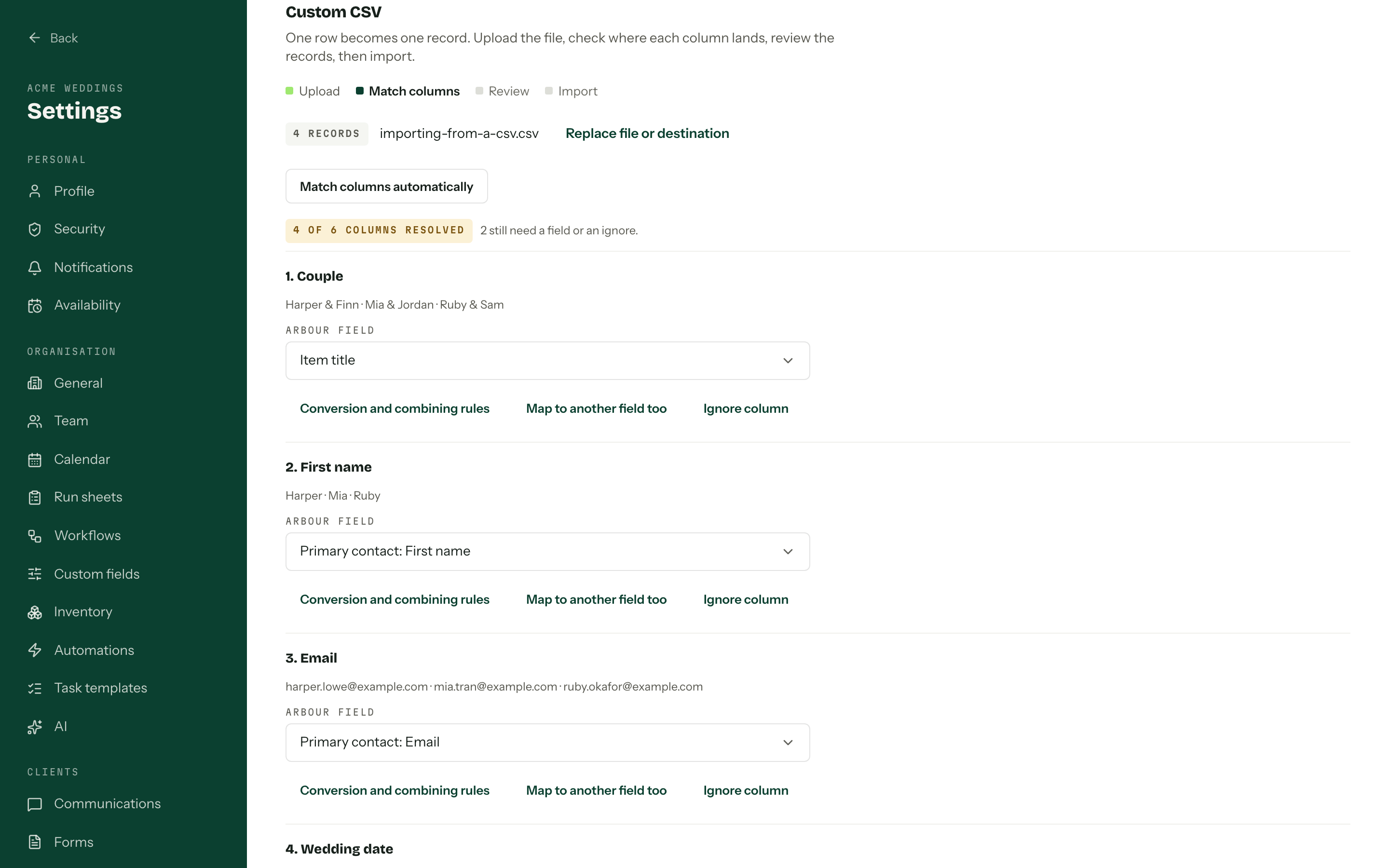
Arbour accepts CSV uploads with column mapping and shows preview counts before the import writes anything. It also accepts exports from Studio Ninja, Dubsado, Pixieset and Sprout Studio. Confirm which objects and attachments your chosen route carries, then test the result against the existing product workflow. An importer is not a promise that every old field has an equivalent.
Check the destination field before importing
Show full screenShow close-up: Check the destination field before importing
Reconcile dates and money before switching
Count the source jobs by status and month. Compare those counts with the imported records, allowing for duplicates you deliberately removed. Keep an exception list for anything skipped, merged or corrected.
Then compare outstanding balances by job with the authoritative invoice and payment records. Do not turn a spreadsheet's expected payment into a recorded receipt. A deposit due and a deposit received are different facts. Resolve differences with whoever keeps the accounts before sending reminders.
Open the next few booked jobs individually. Check the event date, venue, contact details, agreed package and next deadline. Test document access as the staff member who will use it. Someone who only needs the run sheet should not need the owner's login. ASD's small-business guidance recommends limiting each person's access to what their role requires. [3]
Give the team one switch date
Choose a quieter working day with time to fix problems. Name one person to approve the move. Write down the final export time, where new enquiries will land and who checks changes received during the import.
After approval, mark the old workbook read-only and put a clear note at the top naming the system now used for live work. Stop its reminders and duplicate follow-ups before enabling replacements. Two systems sending payment emails is a poor introduction to the new process.
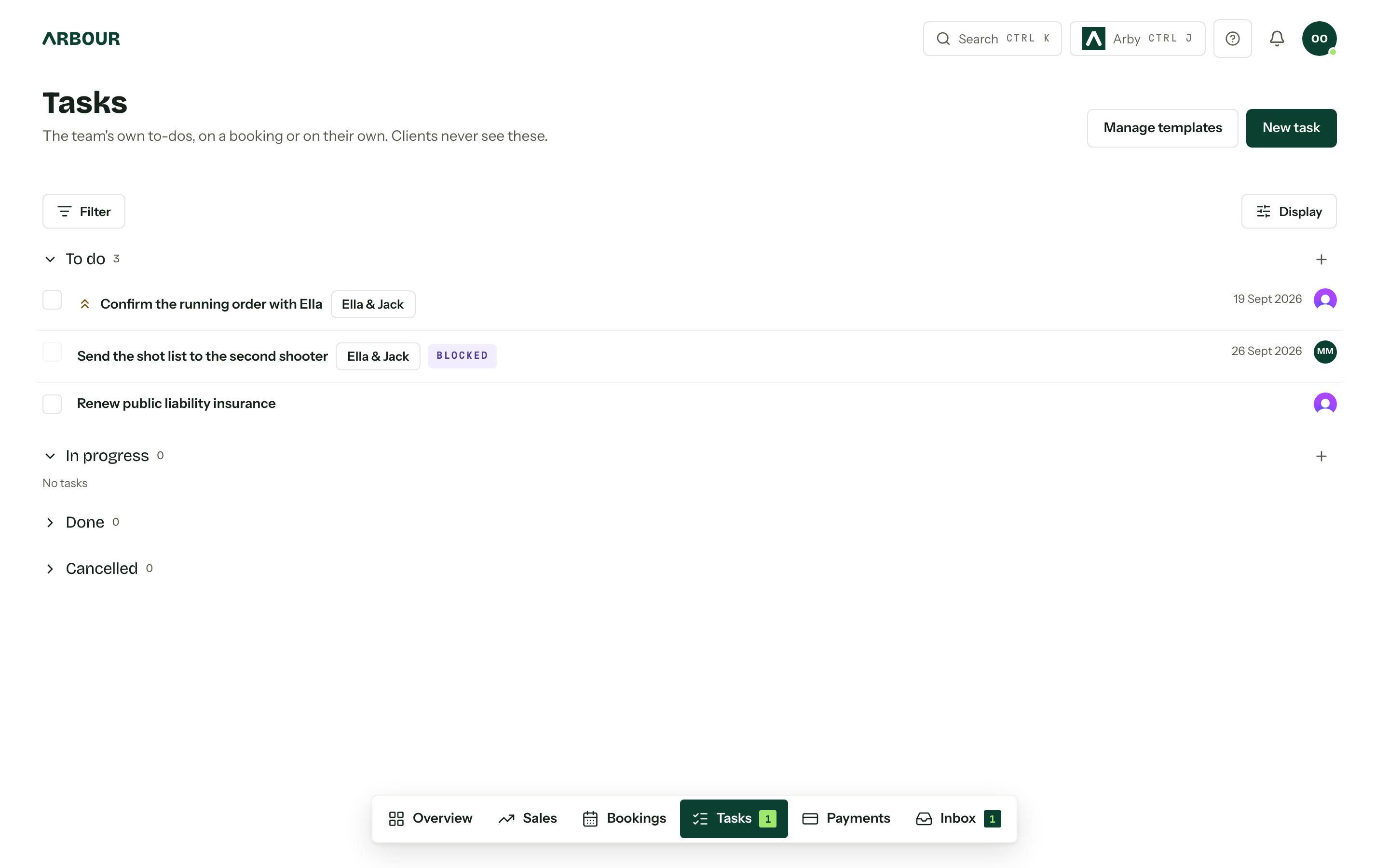
For the first week, review new enquiries, upcoming jobs and payment reminders each day. Keep the exception list open until every item has an owner and a decision. Move older records only when you know why they need to be in the live system.
Give each migration exception an owner
Show full screenShow close-up: Give each migration exception an owner
Sources
Sources checked on 28 October 2026. Product details and guidance can change.
- 1Save a workbook to text format (.txt or .csv)
Microsoft Support
- 2Create, view, or download a file
Google Docs Editors Help
- 3Small business cyber security guide
Australian Signals Directorate
- 4Chapter 10: APP 10 Quality of personal information
Office of the Australian Information Commissioner
Published by Arbour, which makes wedding business software. Read our editorial approach.